Dependencies
Dependencies let you control when a scheduled Job starts executing based on a prerequisite condition. A Job or Folder can have an unlimited number of Dependencies.
Dependencies require the Job to be submitted to the Monitor view (either manually or via a Trigger) before they are evaluated. A Dependency is a condition that needs to be satisfied before an Entry is released to start executing. When the Job with a Dependency reaches its Hold Time in the Monitor view, it will have a state of Waiting for Prerequisites until all Dependency conditions are met.
You may also create your own user-defined Dependencies through Precheck Jobs, which can be used to ensure a specific condition has been met before allowing the Job to run. These let you add the ability to handle any type of pre-processing needs.
Set a Dependency on a Job
You can add a Dependency on another Job to have completed. The Job will remain in a Waiting for Prerequisites state until the Dependency has been met. You can also specify the required completion severity to ensure it completed as expected.
A Depends on Job is required. A Since Job or Within Time is optional. If no Since Job or Since Severity is specified, the JAMS Scheduler will look forward in time for a new completion of the Depends on Job that meets the specified Completion Severity. If a Since Job is provided, the JAMS Scheduler will also look back in time as far as the last completion of the Since Job that meets the Since Severity. If a Within Time is provided, the JAMS Scheduler will also look back in time as far as the specified period.
- Click Definitions from the Shortcuts menu.
- Right-click a Job or Folder and select Properties.
- Click the Schedule tab.
- Click +.
- Select This Job depends on a | Job.
- In the Depends on Job field, click … to select the Job that will be monitored.
- In the Wait for All field, optionally select the checkbox to wait for all instances of this dependency to complete before satisfying the dependency.
- In the Completion Severity field, select the minimum severity for the Job selected in the Depends on Job field. The Job must meet or exceed this severity.
- Click Finish. The Dependency is listed under the This Job depends on a section on the Schedule tab.
- Click Save and Close.
Job Dependency Properties
| Status | Description |
|---|---|
| Enabled | Select or clear the checkbox to enable or disable this dependency. |
| Since | Description |
|---|---|
| Since Job | This property specifies the Job to use to define how far back we look for the completion of the Depends On Job. Specifying this property is optional. |
| Since Severity | This property specifies completion severity the Job specified in the Since Job field must have to satisfy the dependency. The Job must meet or exceed this set severity. Specifying this property is optional. |
| Within Time | This property specifies a delta time to define how recently the Depends On Job must have completed to satisfy the dependency. Specifying this property is optional. |
| Depends On | Description |
|---|---|
| Depends on Job | This property specifies the Job that will be monitored for the dependency. The parent Job will wait for this Job to complete before it will run. |
| Wait For All | This checkbox is used if there is more than one instance of the Depends on Job. Select the checkbox to wait for all of them to complete before satisfying the dependency. Clear the checkbox to allow the dependency to be satisfied if only one instance of the Depends on Job completes, if there are multiple instances. |
| Completion Severity | This property specifies the completion severity the Depends on Job must meet or exceed to satisfy the dependency. |
Set a Dependency on a Job (date specific)
You can add a Dependency on another Job to have completed on a certain date/day. The Job will remain in a Waiting for Prerequisites state until the Dependency has been met on the specified day. You can also specify the required completion severity to ensure it completed as expected.
- Click Definitions from the Shortcuts menu.
- Right-click a Job or Folder and select Properties.
- Click the Schedule tab.
- Click +.
- Select This Job depends on a | Job (date specific).
- In the Depends on Job field, click … to browse to the Job that will be monitored as a dependency.
- In the Wait For All field, optionally select the checkbox wait for all instances of the Job defined in this Dependency to complete before satisfying the dependency, if there are multiple instances of this Dependency.
- In the Completion Severity field, set the completion severity the Depends on Job must meet or exceed to satisfy the Dependency.
- In the Depend on Date field, select the date that the Depends on Job must have been completed according to the Completion Severity property that was specified.
- Set any additional Override properties to control the Job as needed. See the table below.
- Click Finish. The Dependency is listed under the This Job depends on a section on the Schedule tab.
- Click Save and Close.
Date Specific Dependency Properties
| Status | Description |
|---|---|
| Enabled | Select or clear the checkbox to enable or disable this dependency. |
| Override | Description |
|---|---|
| Calendar | When a Calendar is listed, the Job will have access to the Date Types, such as holidays, in the Calendar. |
| Depends On | Description |
|---|---|
| Depends on Job | This property specifies the Job that will be monitored for the dependency. The parent Job will wait for this Job to complete before it will run. |
| Wait For All | This checkbox is used if there is more than one instance of the Depends on Job. Select the checkbox to wait for all of them to complete before satisfying the dependency. Clear the checkbox to allow the dependency to be satisfied if only one instance of the Depends on Job completes, if there are multiple instances. |
| Completion Severity | This property specifies the completion severity the Depends on Job must meet or exceed to satisfy the dependency. |
| Depend on Date | This property specifies a natural language date specification for the date that the Depends On Job must have completed on. It is the date used to evaluate this dependency. You can select a date from the drop-down menu or enter a value such as “First Monday of Month”. |
Set a Dependency on a Precheck Job
You can set a Dependency on a Precheck Job, which lets you define any type of condition that a Job can be built to look for. A Precheck Job will be run automatically before the parent Job. This gives you additional flexibility beyond the built-in Dependency options. Any Job Definition can be specified. For example, you can have a Precheck Job to watch for a value in a database to change. Precheck Jobs can be written to loop internally until a condition is met. This avoids creating a new Entry each time the logical check is performed.
If the Precheck Job is successful, this Job will run. If the Precheck Job fails, it is submitted again based on the specified interval. This will continue until the Precheck Job is successful.
You can also use exit codes to control the response of the parent Job to the Precheck Job. See Precheck Job Exit Handling Methods for PowerShell for more information. In addition to these options, you can use the following exit codes with Jobs running on an SSHAgentX Agent:
- 0 = Continue executing
- 101 = Cancel the parent Job with a final severity of Success.
- 102 = Cancel the parent Job with a final severity of Info.
- 103 = Cancel the parent Job with a final severity of Warning.
- 104 = Cancel the parent Job with a final severity of Error.
- 105 = Try again
You can also use predefined Parameters with a Precheck Job that can be parsed within a Precheck Job. The Parameters can be used for retrieving details from the Parent Job. See Precheck Job Parameters for more information.
- Click Definitions from the Shortcuts menu.
- Right-click a Job or Folder and select Properties.
- Click the Schedule tab.
- Click +.
- Select This Job depends on a | Precheck Job.
- In the Precheck Job field, click ... to browse to the Precheck Job.
- Double-click the Precheck Job.
- Click Ok.
- In the Precheck Interval field, enter the interval for running the Precheck Job.
- Click Finish. The Dependency is listed under the This Job depends on a section on the Schedule tab.
- Click Save and Close.
Precheck Job Dependency Properties
| Status | Description |
|---|---|
| Enabled | Select or clear the checkbox to enable or disable this dependency. |
| Prerequisite | Description |
|---|---|
| Precheck Job | This property specifies a Job that must successfully executes before this Job is allowed to start. |
| Precheck Interval | This property specifies the delay between executions of the Precheck Job if the Precheck Job fails. If the Job already has an internal loop, this option may not be used. |
Set a Dependency on a File
You can set a File Dependency on a Job. This will prevent a Job from running until the specified file is present, absent, or available. Before you set the File Dependency, create a Credential that has access to the file. See Working with User Credential Definitions for more information.
- Click Definitions from the Shortcuts menu.
- Right-click a Job or Folder and select Properties.
- Click the Schedule tab.
- Click +.
- Select This Job depends on a | file.
- In the Credentials field, select the Credential that has access to the file.
- In the File Name field, enter the name of the file.
- In the File Presence Option field, select the state of the file. You can select Present, Available, or Absent.
- In the Minimum Size field, enter the minimum size in bytes that is allowed for the file.
- In the Agent field, select that Agent that will be used to run the File Watch Job.
- In the Any Credential field, leave the checkbox selected to let JAMS use a single file watch for this file even when other Jobs are watching it under different credentials. Clear the checkbox to create a separate file watch that uses only these credentials.
- In the Aggregate field, leave the checkbox selected to have JAMS watch for this file in a shared Watcher process, along with the other files being watched using the same credentials. Clear the checkbox to watch for this file in a process of its own.
- Click Finish. The Dependency is listed under the This Job depends on a section on the Schedule tab.
- Click Save and Close.
File Dependency Properties
| Status | Description |
|---|---|
| Enabled | Select or clear the checkbox to enable or disable this dependency. |
| File Watch | Description |
|---|---|
| Credentials | Select a Credential for this dependency. The Credentials must have access to the file location. |
| File Name | This property specifies the file to watch for. Wildcards are allowed. |
| File Presence Option | This property specifies if the file must be present, absent, or available to satisfy the dependency. |
| Minimum Size | This property specifies a minimum acceptable size for the file. |
| Agent | This property specifies the Agent where the file watch will be performed. |
| Any Credential | This property specifies whether JAMS can use a single file watch process for this file when other Jobs are watching it under different credentials. |
| Aggregate | This property specifies whether JAMS watches for this file in a shared Watcher process along with the other files being watched using the same credentials. |
Turning Off Aggregation for a File Watch Job
By default, JAMS watches for files in a shared process along with other file watches using the same credentials (see Aggregate, above). There are two ways to turn this off, and which one you want depends on how much you want to opt out.
To opt out a single file watch, clear the Aggregate checkbox on that individual File Dependency or File Trigger. That watch then runs in its own dedicated process, and every other file watch continues to be aggregated.
To opt out every file watch on the system, add a Parameter named FileWatchNoAggregates (Data Type: Boolean, Value: True) to the FileWatch job itself, or to a Folder above it. For more information on adding Folder Parameters please see the Parameters section for Working with Folders.
JAMS does not watch for files from your own Job. When you add a File Dependency or File Trigger, JAMS submits a separate FileWatch job to do the watching, and that job lives in the JAMS system Folders rather than alongside your Job. Adding FileWatchNoAggregates to the Folder that holds your own Jobs therefore has no effect, because the FileWatch job does not inherit from it.
Because all FileWatch jobs share the same location, setting FileWatchNoAggregates on a Folder above them turns aggregation off for every file watch in the system. To opt out only some of your file watches, clear the Aggregate checkbox on each one instead.
FileWatchNoAggregates overrides the Aggregate checkbox: where it is set True, file watches always run in a dedicated process, even for a dependency where Aggregate is still selected.
File Watch Log Messages
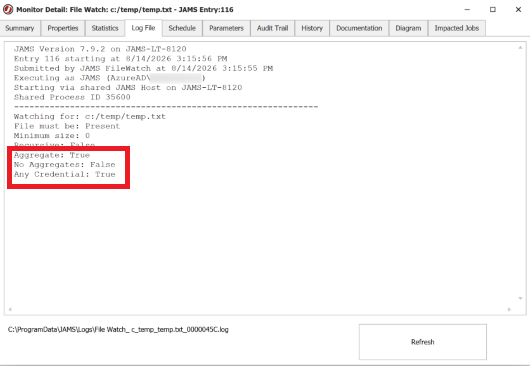
Each FileWatch job reports the settings it is using near the top of its log:
| Log Message | Description |
|---|---|
| Aggregate | Whether this dependency/trigger's Aggregate checkbox was selected. |
| No Aggregates | Whether the FileWatchNoAggregates Parameter is set to True on the FileWatch job or a Folder above it. |
| Any Credential | Whether this dependency/trigger's Any Credential checkbox was selected. |
Set a Dependency on a Variable
You can add a Dependency on a Variable. This is useful to ensure a Variable value is set properly before allowing a Job to run. A Job or process can set the value of the Variable for a downstream Job to evaluate based on a defined condition.
- Click Definitions from the Shortcuts menu.
- Right-click a Job or Folder and select Properties.
- Click the Schedule tab.
- Click +.
- Select This Job depends on a | Variable.
- In the Compare Condition field, select the type of comparison that will be used on the Variable.
- In the Compare Value field, enter a default value that will be used for the comparison.
- In the Variable field, select the Variable that will be monitored.
- Click Finish. The Dependency is listed under the This Job depends on a section on the Schedule tab.
- Click Save and Close.
Variable Dependency Properties
| Status | Description |
|---|---|
| Enabled | Select or clear the checkbox to enable or disable this dependency. |
| Condition | Description |
|---|---|
| Compare Condition | This property specifies the type of comparison that should be performed. The available options include less than, greater than, less than equal, greater than equal, false, or true. |
| Compare Value | This property specifies the value used in the condition comparison. |
| Value | Description |
|---|---|
| Variable | This property specifies JAMS Variable that contains the default value. |
Set a Dependency on a Resource
You can add a Resource Dependency to a Job to prevent it from running until enough Resources from the Resource Pool in JAMS are available. This is used when setting up a maintenance window.
- Click Definitions from the Shortcuts menu.
- Right-click a Job or Folder and select Properties.
- Click the Schedule tab.
- Click +.
- Select This Job depends on a | Resource.
- In the Resource field, select the Resource for the dependency.
- In the Quantity Required field, enter a quantity that is required to satisfy the Resource Dependency.
- Click Finish. The Dependency is listed under the This Job depends on a section on the Schedule tab.
- Click Save and Close.
Resource Dependency Properties
| Status | Description |
|---|---|
| Enabled | Select or clear the checkbox to enable or disable this dependency. |
| Resource | Description |
|---|---|
| Resource | This property specifies the Resource that will be used for this dependency. |
| Quantity Required | This property specifies the resource quantity that is required to satisfy the dependency. |
Set a Dependency on a Time Window
You can set a Dependency on a time window. This will allow a Job to run only within a specified range of time.
-
Click Definitions from the Shortcuts menu.
-
Right-click the desired Job or Folder and select Properties.
-
Select the Schedule tab.
-
Click +.
-
Select This Job depends on a | time window.
-
In the Missed Window Action field, select an action for the Job when the time window is closed.
-
In the Schedule Window field, select the Named Time or specify a Schedule From Time and a Schedule To Time.
noteWhen using a Named Time on a time window, leave Schedule From Time and Schedule To Time blank.
-
Click Finish. The Dependency is listed under the This Job depends on a section on the Schedule tab.
-
Click Save and Close.
Time Window Dependency Properties
| Status | Description |
|---|---|
| Enabled | Select or clear the checkbox to enable or disable this dependency. |
| Window | Description |
|---|---|
| Missed Window Action | The action taken when the Schedule Window is missed. The following options are available:
|
| Schedule From Time | This property specifies the start of the scheduled time window for the Job. Note: When using a Named Time on a time window, leave Schedule From Time and Schedule To Time blank. |
| Schedule To Time | This property specifies the end of the scheduled time window for the Job. Note: When using a Named Time on a time window, leave Schedule From Time and Schedule To Time blank. |
| Schedule Window | This property specifies the Named Time that is a flexible window of time where Jobs may be scheduled to run. |
| Notify | Description |
|---|---|
| Notify Event Class | Select the event class that this event will generate when it occurs. You can select None, Normal, Low, Moderate, High, Urgent, or Critical. |
| Notify of Missed Window | Select the checkbox to generate an event of the specified Notify Event Class if the Job has not started when the time window closes. Clear the checkbox to have the event generated if the Job has not completed when the time window closes. |
| Notify Only If Not Started | Select the checkbox to set the Notify Event Class option if the Job has not started when the time window closes. Clear the checkbox to not set the Notify Event Class option if the Job has not completed when the time window closes. |
| Level | This property specifies the level to be used by event handlers to classify events. |
| Message | Enter a message that will be passed to event handlers when this event is generated. |