Manually Generating Reports
JAMS makes it easy to add reporting capabilities for either existing or new Jobs. The following topic summarizes how to create and generate Reports both manually and automatically.
Users may view all existing Reports from the JAMS Client by selecting the Report Viewer shortcut from the menu.
To generate a JAMS Report:
- From the JAMS Shortcuts menu, click Report Viewer.
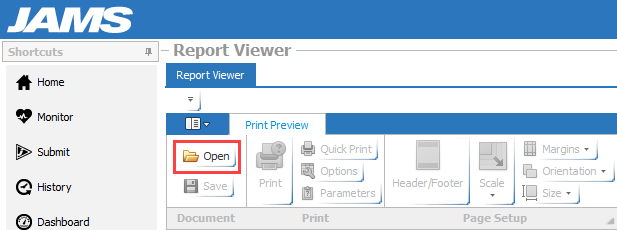
- In the Report Viewer, click Open to view any existing Reports. The Open JAMS Report window appears with a listing of categories containing Reports already built into JAMS.
- Expand a category, and highlight one of the Reports.
- Click OK. You may also open any stand-alone Reports by clicking the File button.

- On the Parameters dialog, enter the properties for the specific Report type.
- Click Submit to query the JAMS system and create the Report based on the entered parameters in the previous step.

- After running the Report, you can export the Report in a variety of file formats. Click the Export/Export To command located on the right of the Report Viewer Ribbon Bar.
Using the Report Viewer is an easy way to manually run reports against the JAMS system. It is also possible to run the same Reports automatically. See the topic: Integrating Reports with Automated JAMS Jobs for additional details.