Azure Blob
You can use the Azure Blob Execution Method within JAMS to delete, download, or upload an Azure Blob. This Execution Method makes it easy to share, update, and maintain files in your Azure environment. No scripting is required for any of these options.
Only a single operation can be performed on a single path/file/Blob.
The Execution Method does not perform container-level operations, such as creating a container, deleting a container, or modifying container rules.
Before You Begin
Ensure you have the following information from Azure before you configure this integration:
-
Tenant ID
-
Client ID
- The Client application must have the Storage Blob Data Contributor permission on the storage account.
-
Client Secret
-
Storage Account Name
-
Remote Container Name
-
Blob Name
Creating a Connection Store Item for Azure Blob
To connect to an Azure Blob, you need a Connection Store item in JAMS. See Connections for Integrations for the steps to configure the Connection.
Adding a Credential for Running the JAMS Job
- Expand Execution from the main menu
- Click Credentials.
- Click Add.
- In the Display Name field, enter a name for the Credential.
- In the Logon Username field, enter the username for the Credential.
- In the Password and Reenter Password fields, enter the password.
- Click Save and Return to List.
Creating a Job in JAMS to delete an Azure Blob
The AzureBlob Execution Method lets you delete a file/Blob.
This Delete option will also delete any snapshots of the Blob. These cannot be recovered.
- Click Jobs from the main menu.
- In the Folder Navigator, click a Folder where the Job will be saved. You may need to create a Folder if one does not exist. See Folders for more information.
- Click Add.
- In the Job Name field, enter a name for the Job.
- In the Execution Method field, select AzureBlob.
- Click Save and Continue to Edit.
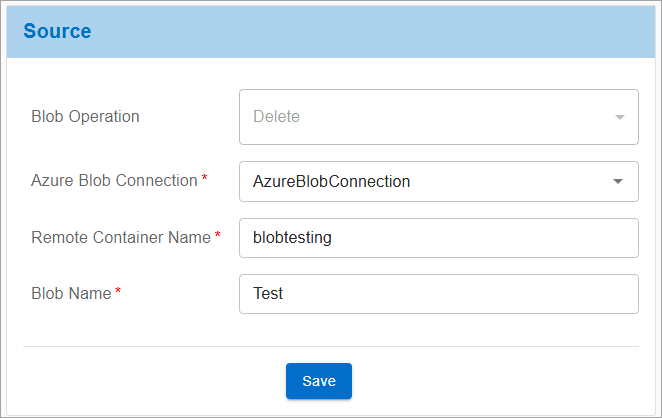
- On the Source tab, select Delete from the Blob Operation field.
- Click Continue. The type of operation you selected is displayed in the Blob Operation field.
- In the Azure Blob Connection field, select the Connection Store item that you created for an Azure Blob.
- In the Remote Container Name field, enter the name of the container.
- In the Blob Name field, enter the name of the Azure Blob to delete.
- Click Save.
- Click the Schedules tab to add schedule items to set when the Job will run.
- Click Save.
- Click the Properties tab.
- In the Execute As field, select the JAMS Credential to run the Job.
- In the Agent field, select the Agent if the Job will not run on the Scheduler.
- Click Save.
Creating a Job in JAMS to download an Azure Blob
The AzureBlob Execution Method lets you download a file/Blob. If the file already exists on your local machine, it will be overwritten.
- Click Jobs from the main menu.
- In the Folder Navigator, click a Folder where the Job will be saved. You may need to create a Folder if one does not exist. See Folders for more information.
- Click Add.
- In the Job Name field, enter a name for the Job.
- In the Execution Method field, select AzureBlob.
- Click Save and Continue to Edit.
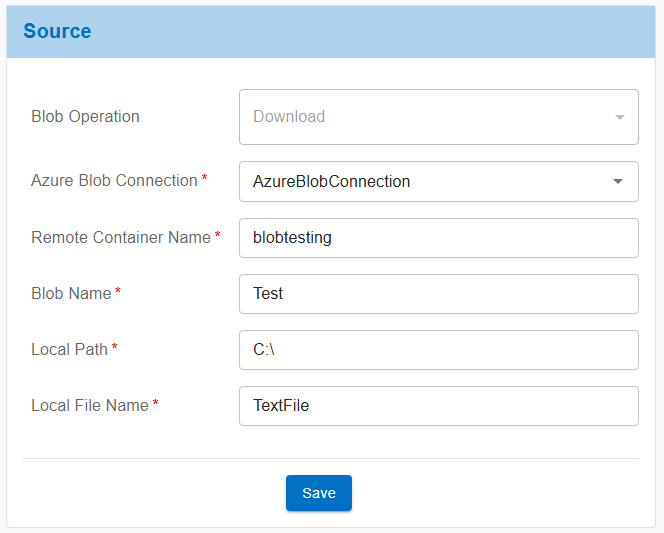
- On the Source tab, select Download from the Blob Operation field.
- Click Continue. The type of operation you selected is displayed in the Blob Operation field.
- In the Azure Blob Connection field, select the Connection Store item that you created for an Azure Blob.
- In the Remote Container Name field, enter the name of the container.
- In the Blob Name field, enter the name of the Blob.
- In the Local Path field, enter the path, including the parent folder, where the Blob will be downloaded onto your local machine.
- (Optional) In the Local File Name field, enter the name of the file that will be downloaded.
- Click Save.
- Click the Schedules tab to add schedule items to set when the Job will run.
- Click Save.
- Click the Properties tab.
- In the Execute As field, select the JAMS Credential to run the Job.
- In the Agent field, select the Agent if the Job will not run on the Scheduler.
- Click Save.
Creating a Job in JAMS to upload an Azure Blob
The AzureBlob Execution Method lets you upload a file/Blob to Azure. If the file already exists, it will be overwritten.
- Click Jobs from the JAMS Shortcuts menu.
- In the Folder Navigator, click a Folder where the Job will be saved. You may need to create a Folder if one does not exist. See Folders for more information.
- Click Add.
- In the Job Name field, enter a name for the Job.
- In the Execution Method field, select AzureBlob.
- Click Save and Continue to Edit.
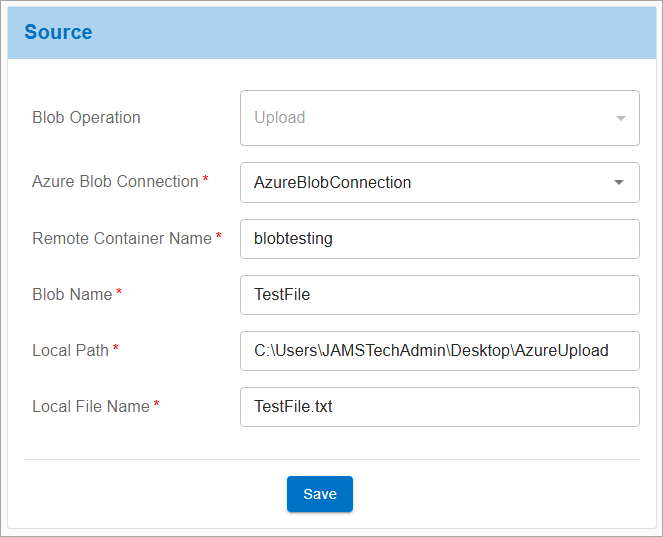
- On the Source tab, select Upload from the Blob Operation field.
- Click Continue. The type of operation you selected is displayed in the Blob Operation field.
- In the Azure Blob Connection field, select the Connection Store item that you created for an Azure Blob.
- In the Remote Container Name field, enter the name of the container.
- In the Blob Name field, enter the name of the Blob. If an Azure Blob with the same name already exists, it will be overwritten.
- In the Local Path field, enter the path, including the parent folder, to the file.
- In the Local File Name field, enter the name of the file, including the file extension.
- Click Save.
- Click the Schedules tab to add schedule items to set when the Job will run.
- Click Save.
- Click the Properties tab.
- In the Execute As field, select the JAMS Credential to run the Job.
- In the Agent field, select the Agent if the Job will not run on the Scheduler.
- Click Save.