Using JAX
Once your administrator has enabled JAX, the  icon appears in the JAMS Web Client application bar. Everything described in this section happens inside the JAMS Web Client and no additional software is required on your computer.
Opening the JAX Drawer
- Log in to the JAMS Web Client.
- Click the icon in the JAMS Web Client application bar to open the JAX drawer on the right side of the screen. The drawer stays open as you navigate between screens in the JAMS Web Client.
Starting a Conversation
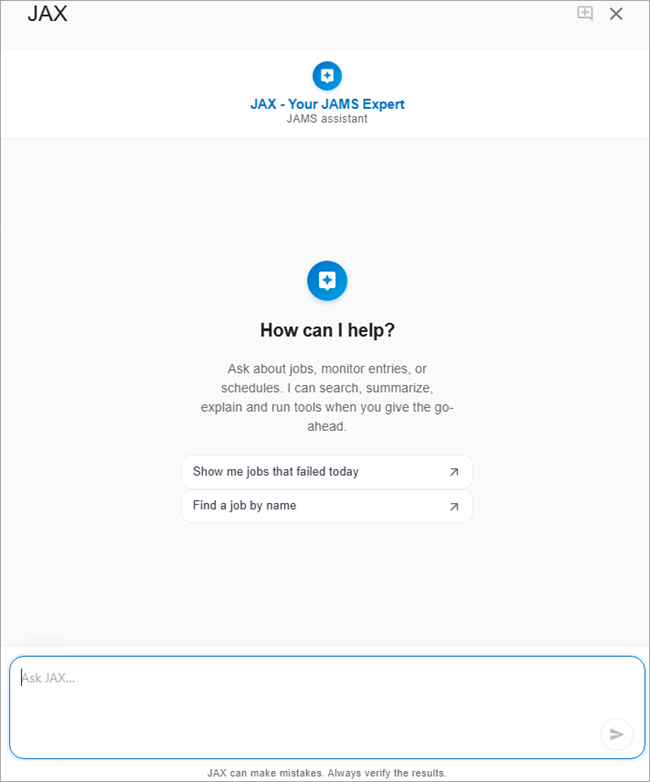
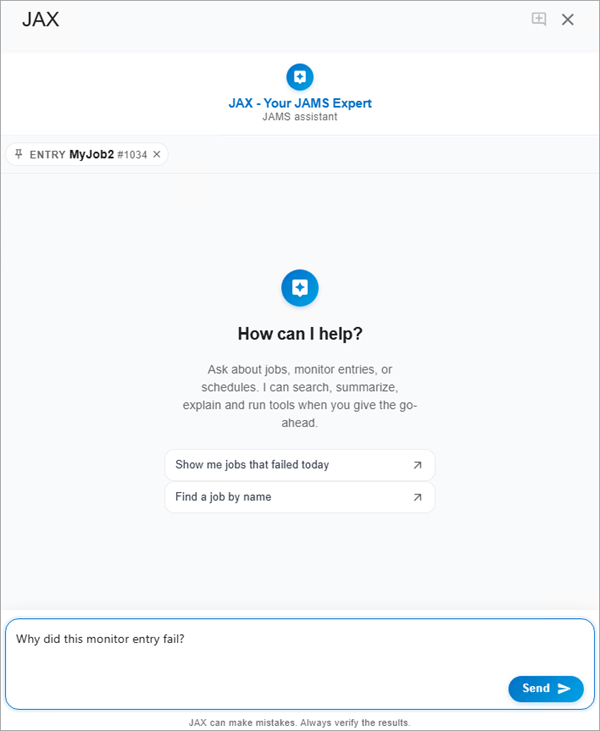
When no conversation is active, the drawer shows a set of starter chips that are pre-written prompts that cover common questions, such as "Show me jobs that failed today". JAX has access to your JAMS data, constrained by your permissions.
- Tap a chip to populate the input field, or type your own question directly.
- Press Enter to send.
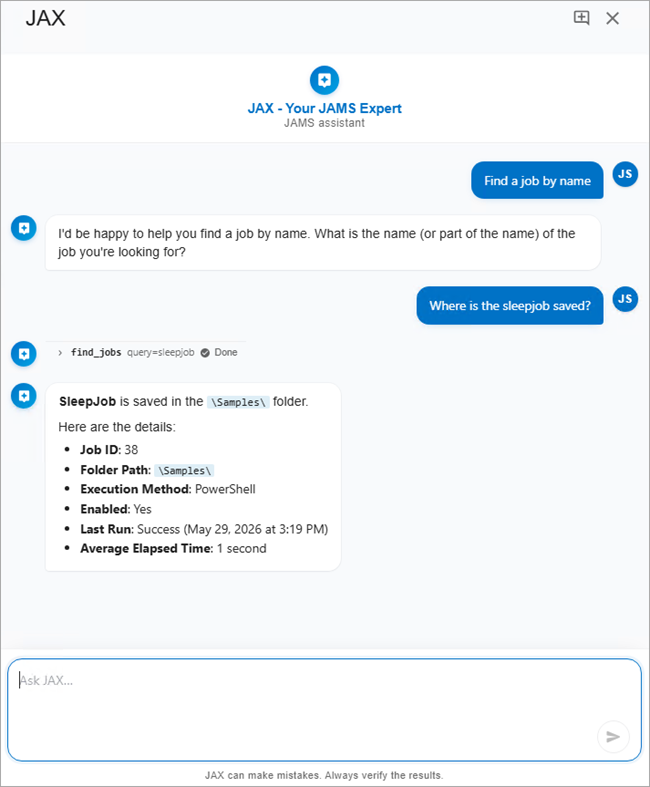
JAX response streams in token by token. If JAX needs to look up data in JAMS to answer your question, you will see a small tool card appear as each data call completes. The tool card shows a preview of what JAX retrieved. The prose answer follows once all the data has been gathered.
Starting a New Conversation
Click the New chat button  in the top right corner to clear the current transcript and start fresh. JAX does not remember past conversations.
Refreshing your browser will also clear the chat.
Where Can You Access JAX
You can access JAX from several areas in the JAMS Web Client.
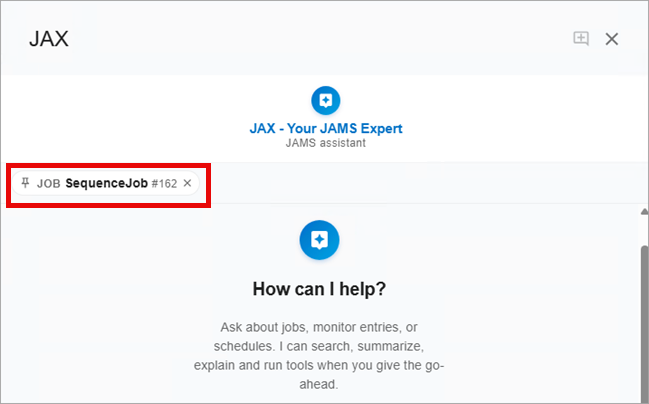
- The icon top right corner of the toolbar. This allows you to access the main chat window. If you have a JAMS Object, selected when you click this icon, that item is displayed as chip. The JAMS Objects can include a Job, Folder, Variable, Agent, Execution Method, Batch Queue, Credential, Connection Store item, Resource, or Named Time.
- Monitor screen. Select a failed Entry in the Monitor and then select
 in the Actions column. From the dropdown menu, select Ask JAX. The chat drawer opens and displays the Monitor Entry number that you referenced. You can now ask questions about this specific Entry. JAX will know that you are referencing this specific Entry for your questions.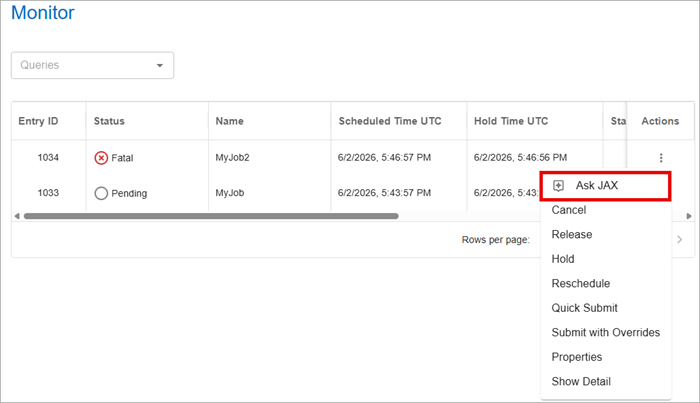
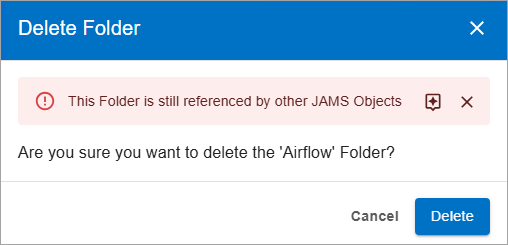
- Error screens for JAMS objects are linked/dependent on other JAMS objects. If you try to delete a Folder that is not empty or a Job that has references, you will see an option on the error dialog to open JAX. If you click the icon, it will already have a question ready to help determine what the error means and how to fix it.
How JAX Knows What You Are Looking At
JAX receives lightweight context about the page you are currently viewing, so you can use pronouns like "this" or "here" without spelling out which entity you mean. Three signals feed this context automatically.
- Selection. When you select a row on an entity list page (Agents, Variables, Credentials, Batch Queues, Connections, Execution Methods, Named Times, Resources, or Monitor Entries) JAX sees the type, ID, and name of the selected row. Asking "Tell me where this agent is used" with the WindowsAgent1 agent selected means it already knows you mean WindowsAgent1.
- Route. When you are on an entity's detail or edit page, the entity ID from the URL flows into context automatically. Asking "Why did this fail?" while viewing a Monitor Entry's detail page means JAX already knows which Entry you mean.
- Pinned. You can explicitly pin an entity to keep it in context while you navigate away. This is useful for asking a series of follow-up questions about the same Job or Monitor Entry across different pages.
If JAX cannot determine which entity you mean because there is no selection, no route context, and nothing pinned, it asks a clarifying question rather than guessing.
Pinning a Conversation
If you want to save a conversation and keep that as the reference point, you can pin it to the top of the screen. This allows you to return to one conversation. Click the pin icon to save it.
Only one conversation can be pinned at a time. If you try to pin a second conversation, the first pinned conversation is automatically removed. Refreshing the browser or logging out will also remove a pinned conversation.
Asking About An Error
When JAMS displays an error alert, such as when a delete operation is blocked because other objects reference the item, look for a small icon inside the alert. Clicking it opens the JAX drawer with the error text already loaded and a drafted question:
"Help me understand and resolve this error."
JAX matches the error against a curated catalog of known issues and responds with the likely cause and the recommended fix, often without needing to make additional JAMS data calls. The same icon appears inside delete-confirmation dialogs when a delete is blocked.
Write Actions and Approvals
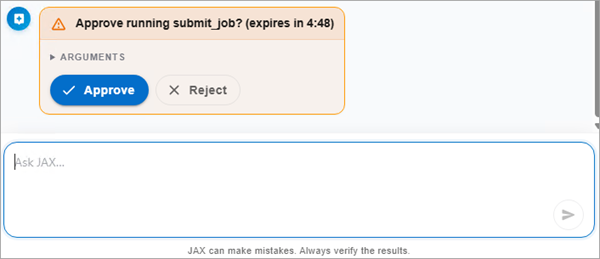
JAX can perform several write actions, including submitting a Job, creating a Folder, canceling a Job, rescheduling a Job, releasing a Job, and holding a Job. Other JAX tools are read-only.
When you ask JAX to submit a Job, the conversation pauses and an approval card appears showing the exact Job name and arguments JAX has chosen. You must review and click one of two options:
- Approve — JAX completes the action on your behalf using your JAMS permissions. The conversation resumes with a confirmation.
- Reject — JAX does not complete the action. The conversation resumes and you can refine your request.
Approval tokens expire after 7 minutes. If you step away before approving and return to find the approval card gone or an expired message, ask the question again to generate a new approval card. Never approve an action without reading the arguments in the card.
Example Prompts
Triage Failed Jobs
JAX is effective at failure diagnosis. It looks up the Monitor Entry, reads the execution log, translates the underlying error codes, such as Windows logon errors, SQL Server errors, cloud provider errors into plain English, and identifies the specific JAMS object you need to open and fix.
- "What failed last night?"
- "Why did Daily_Posting fail?"
- "What errors did the Finance folder Jobs produce this week?"
Single-Job Status and History
- "Show me the status of Nightly_DataLoad"
- "When did CustomerOrders last run successfully?"
- "Show me the source for the Nightly_DataLoad Job"
Health Checks across Jobs
- "What is the health of the Finance folder?"
- "What Jobs are running right now?"
- "What Jobs are currently held?"
Finding Jobs and Configuration
- "Find the Job that loads customer orders"
- "What batch queues exist on the WIN-PROD-01 Agent?"
- "Show me Jobs that use the PROD_DB Credential"
Submitting a Job
- "Submit the ReportGen job for me" triggers the approval flow. See Write Actions and Approvals.