JAMS AgentD for Linux/Unix
Agents Introduction
Agents allow users to define specific actions that can run locally or remotely throughout a JAMS network. By default, JAMS can only run Jobs and Sequences on the Primary Engine. Agents allow users to extend that capability to run Jobs on a variety of different environments. For example, by using JAMS Agents, a single JAMS Scheduler can execute tasks on many systems.
The JAMS AgentD is a version of the JAMS Agent that runs as a background service on Linux/Unix machines. This topic details how to install this Agent to your primary machine.
Jobs running on an AgentD Agent must use or be based on either the UnixShell or UnixScript execution methods.
Installing the Agent
There are two ways to install the Agent:
- Install from a package (.rpm or .deb): You need to use appropriate package management tools (rpm, yum, apt-get, yast). The .rpm and .deb packages are preferred if you need to install in the standard location as root. The package can also be installed in a non-standard location, but it only handles installation as root. It also has the advantage of allowing the package system to check for updated versions automatically. (See the notes on the system distribution specific Repo page.)
- Install from the tarball (.tgz): The is an archive of the files necessary for the install, which needs to be manually installed by following the instructions in the README file included with the .tgz file. This is the preferred method if you need a non-root install.
Installing the Agent from a Package
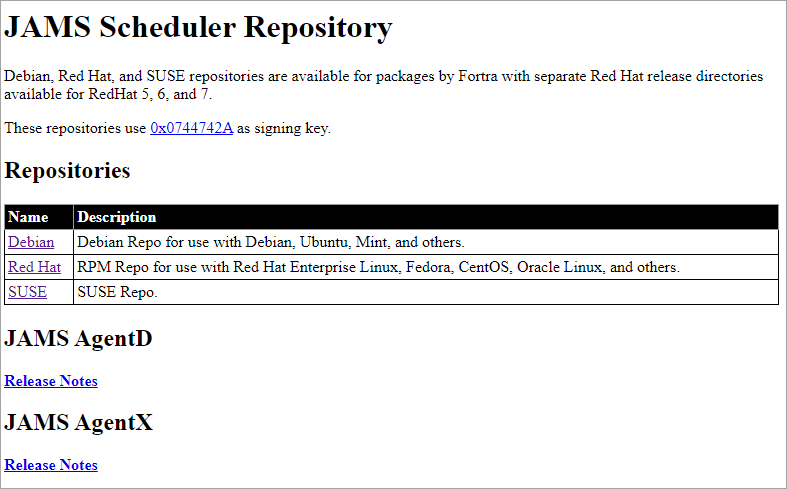
- Go to the JAMS Scheduler Repository at: JAMS Scheduler Repository.
- Select the repository for your system.
- Download the appropriate jams-agentd package (.rpm [Red Hat packages], .deb [Debian packages], or .rpm [SUSE packages]. For Red Hat, there are different builds for each release.
- Copy the package to the target machine and become root.
- Use the package manager to install the package.
- It may be necessary to open the firewall for the JAMS Server to connect to the Agent. In this case, the default port 77.
For example, use the following for Red Hat rpm. You can use the --prefix PATH option to relocate the RPM package. (This is not available for the Debian packages.)
# rpm -I jams-agentd-6.5.31-1.el7.x86_64.rpm
JAMS AgentD must be installed as root.
The installer adds the following files:
| Root Installation Directory | File Name | Description |
|---|---|---|
| /usr/sbin | jams-agentd | Service daemon and management command. |
| jams-register | Connection security management command. | |
| /usr/share/doc/jams-agentd | CHANGES | The list of version changes. |
| COPYRIGHT | The copyright statement. | |
| NEWS | Additional details for the list of changes. | |
| README | Additional information about installation and management. | |
| /usr/share/doc/jams-agentd/openssl | License | The OpenSSL license. |
| /usr/share/man/man8 | jams-agentd.8.gz | The manual page for jams-agentd. |
| jams-register.8.gz | The manual page for jams-register. |
The installer also creates a standard configuration, if one is not present. This includes the following certificates and directories:
| Root Installation Directory | File Name | Description |
|---|---|---|
| /etc/init.d | jams-agentd | The service control script. |
| /etc/jams | agent-client.config | The Connection configuration file. |
| jams-agentd.config | The Service configuration file. | |
| /etc/jams/certs | The Secure SSL certificate storage. | |
| /etc/pam.d | jams-agentd | The PAM authentication file for the Agent. |
| /var/log/jams | The JAMS related log files. | |
| /var/run | jams-agentd.pid | The executing Agent process id file. |
| /var/tmp/jams | JAMS Job temporary files (Job scripts). |
The jams-agentd daemon has the following built-in commands for managing the daemon service:
| Command | Description |
|---|---|
| jams-agentd -E | Stop the service. |
| jams-agentd -F | Restart the service. |
| jams-agentd -G | Start the service. |
| jams-agentd -T | Report service status. |
The jams-agentd daemon can also be managed directly, if the service interface is not being used. Use the following commands:
| Command | Description |
|---|---|
| jams-agentd -d | Start the jams-agentd daemon in the background. |
| jams-agentd -K | Stop the jams-agentd daemon. |
| jams-agentd -Q | Test if the daemon is running. Exit code 1 if not. |
Making any modifications to the configuration file will require a daemon restart. The configuration file includes comments describing the various available options.
Avoid stopping and restarting the daemon directly because it may cause problems with the service management software.
Testing the Connection and Connecting from the JAMS Scheduler
Ensure the correct ports are open/listening on the agentd machine. Port 77 is the default port that jams-agentd uses. You will want to test this connection from the JAMS Scheduler machine by using Telnet or PowerShell. See the example below:
telnet YourAgent 77
test-netconnection YourAgent -port 77
Creating the Agent Definition
After you verify the connection from the JAMS Scheduler machine to the AgentD machine, you can create the Agent Definition in the JAMS Client.
After the Agent is created, it is recommended that you set up TLS communication. See Setting up Secure Communication with Outgoing JAMS Agents. This will be required for communication to occur. You will see the Agent state listed as Misconfigured until this security is configured.
- Click Execution from the main menu.
- Click Agents.
- Click Add.
- In the Agent Name field, enter a name for the Agent.
- In the Agent Type field, select the type of Agent.
- In the Platform Type field, select Linux.
- Click Save and Continue to Edit.
- Click the State tab.
- View the License Allocated section. The License Allocated section is blank until you execute the first Job on the Agent. The State section displays "Idle" when the JAMS AgentD is currently not executing Jobs.
- Click the Properties tab.
- In the Address field, enter the IP address for the Agent.
- Ensure the Allow No Remote Host Security option is selected.
- Ensure the Allow SSPI Remote Host Security option is not selected.
- Click Save.
Creating a Credential
Create a Credential for a user on the Linux machine that has the ability to log in and execute the process that is defined in the JAMS Job.
It is not necessary to create a root credential to run Jobs. The Credential should give the Job the minimum permissions necessary to run the required Job. If a root Credential is required, it should be very carefully protected against unauthorized use.
- Click Execution from the main menu.
- Click Credentials.
- Click Add.
- In the Display Name field, enter a name for the Credential.
- In the Logon Username, enter the name that is used for logging in.
- In the Password and Reenter Password fields, enter the password.
- Click Save and Return to List.
Public Key Authentication
PUBLIC-KEY is a valid user_authentication option in the config file. It uses the same public-private key in JAMS as SSH.
PAM Support
Currently, the PAM support needs to have a PAM configuration file for jams-agentd. This is expected to be in the /etc/pam.d directory. When installing jams-agentd, the installer will attempt to create this file by copying the file for sshd with certain edits.
The PAM support uses only auth and account parts. No password updates are possible and a session is not used. This may cause problems with some types of PAM plug ins.
jams-agentD Commands
Commands
The following table lists the commands available for the jams-agentd command.
| Short Command | Long Command | Argument Optional | Valid Options | Description |
|---|---|---|---|---|
| -d | --daemon-mode | -c -p | Fork/exit the program to run in the background. | |
| -h | --host-mode | -c -j | Job hosting mode, used internally to run Jobs. | |
| -s | --shared-mode | -c -u | Shared | |
| -C | --create-config | file name | -p -u | Create config_file with default settings or send to standard out. |
| -E | --stop-service | Stop jams-agentd service. | ||
| -F | --restart-service | Stop and start jams-agentd service. | ||
| -G | --start-service | Start jams-agentd service. | ||
| -I | --install-jams | -c -p -r -u | Install jams-agentd files and configurations with prompts. | |
| -J | --install-quietly | -c -p -r -u | Install jams-agentd files and configurations without prompts. | |
| -K | --kill-daemon | signal number | Stop jams-agentd daemon, using the optional signal. | |
| -P | --pam-config | file name | Create standard PAM config file or send to standard out. | |
| -Q | --query-status | Check for running daemon. | ||
| -R | --remove-service | Remove the jams-agentd service. | ||
| -S | --service-file | file name | -c -u | Create the standard Service control file or send to standard out. |
| -T | --service-status | Report the status of jams-agentd service. | ||
| -U | --update-config | Update the config file with latest settings (planned). | ||
| -V | --version | Report the current version and configuration locations. | ||
| -? | --help | List of commands and options. |
Options
The following table lists options available for the jams-agentd command.
| Short Option | Long Option | Argument | Description |
|---|---|---|---|
| -c | --config-file | file | Use an alternate configuration file. |
| -j | --job-id | job-id | The ID of the running Job. |
| -l | --log-level | log-level | Set the logging level to ERROR, WARN, INFO, DEBUG, or TRACE. |
| -p | --port-number | port | Listen on alternate port. |
| -r | --root path | install-dir | Directory to use as the root for installation. |
| -u | --user-name | user name | User environment. |