User Federations
The JAMS Web Client supports both Active Directory LDAP and Local Windows as identity providers for your user federation(s). To allow your users to log into the JAMS Web Client, you must first configure a User Federation. You can set up more than one type of federation and use the priority field to determine which order JAMS will use to authenticate users.
Initially, the JAMS Web Client will try to authenticate a user as a local user. It will then authenticate the user based on one of the federations that has been configured. The user accounts can be synchronized to ensure JAMS has the latest information.
User Federations screen
The User Federations screen lists all existing federations. You can also create, modify, or delete federations from this page. The following information is listed:
- Display Name – The name that was entered to identify this federation.
- Type – The type of federation. This can be LDAP or Windows.
- Enabled – A checkmark indicates the federation is enabled and available. You can disable a federation, so it is not used by JAMS.
- Priority – The order JAMS will use to try each federation to authenticate users. Federations with a priority of zero have the highest priority.
- Connection Url – The domain used for the federation.
- Status – A checkmark indicates the user federation has been synchronized within JAMS.
- Actions – An additional menu that lets you modify the federation.
Adding an LDAP Federation
You can enable an LDAP/Active Directory federation within the JAMS Web Client. When you set this up, you can use one of the following variables to specify how users will be displayed in the Web Client: {name}, {account_name}, {principal_name}, {email}.
These variables do not affect the user login. For LDAP, users can login based on the Active Directory rules, which often use username and password or Domain\username and password.
- Click Access from the main menu.
- Click User Federations.
- Click Add.
- In the Display Name field, enter a name for the federation.
- In the Type field, select LDAP.
- In the Username Template field, enter the domain name\account name, such as “JAMSSoftware\{account_name}”
- In the Connection URL field, enter the domain, such as “ldaps://jamssoftware.local:636”.
- In the Service User field, enter the name of the service user.
- In the Service Password field, enter the password of the service user.
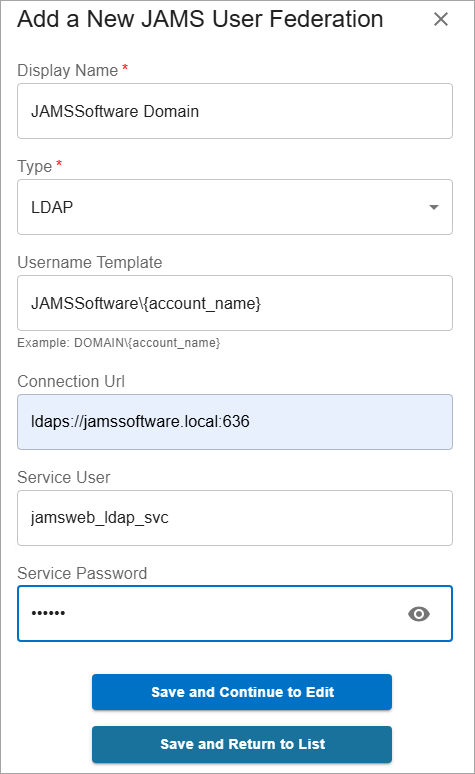
- Click Save and Return to List.
Adding a Windows Federation
You can enable Windows authentication so local Windows users can log into the JAMS Web Client. When you set this up, you can use one of the following variables to specify how users will be displayed in the Web Client: {name}, {account_name}, {principal_name}.
These variables do not affect the user login. For Windows, users can login with their Windows username and password.
- Click Access from the main menu.
- Click User Federations.
- Click Add.
- In the Display Name field, enter a name for the federation.
- In the Type field, select Windows.
- In the Username Template field, enter the domain name\account name, such as “localhost\{account_name}”
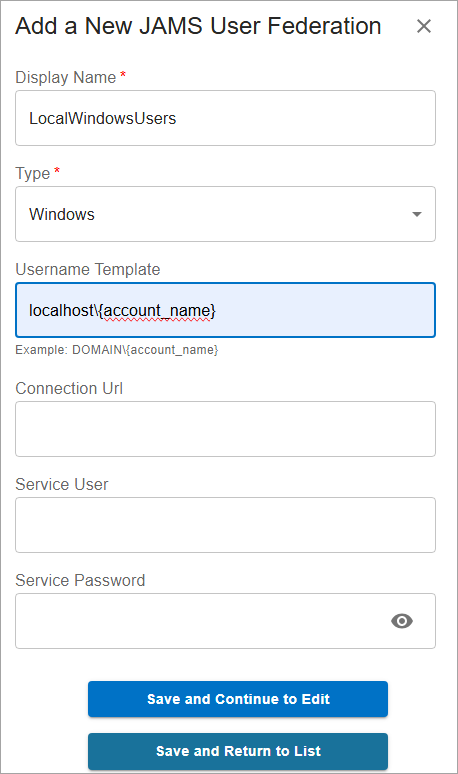
- Click Save and Return to List.
Modifying a Federation
You can modify a federation, including the Display Name, Priority, User Template, Connection URL, and the Service User and Password.
You can also enable or disable a federation to prevent it from being used.
- Click Access from the main menu.
- Click User Federations.
- Click the name of the federation that you want to modify.
- Make any modifications.
- Click Save.
Deleting a Federation
- Click Access from the main menu.
- Click User Federations.
- Click the federation that you want to delete.
- Click Delete.
- When prompted, click Delete.
Synchronizing Users in a Federation with JAMS
You can automatically or manually synchronize the users in a federation, so they are visible within JAMS. This ensures JAMS has the latest information for the user accounts.
Federation synchronization will affect systems outside of JAMS. Contact your Active Directory Administrator prior to enabling or adjusting these values.
Automatically Synchronizing a Federation
You can configure JAMS to automatically synchronize to ensure it has access to the latest user accounts.
- Click Access from the main menu.
- Click User Federations.
- Click the federation that you want to synchronize.
- Click Actions and select Properties.
- Click the Synchronization tab.
- Select the Autosync Enabled toggle.
- In the Autosync Interval field, enter the number of minutes between each synchronization.
- In the Timeout field, enter the number of minutes to wait until the synchronization times out.
- Click Save.
Manually Synchronizing a Federation
You can manually synchronize a federation with JAMS to view the latest list of users. When you synchronize a federation, the federation is locked. If the synchronization is taking too long, you can manually unlock it to allow any changes or prevent time outs.
- Click Access from the main menu.
- Click User Federations.
- Click the federation that you want to synchronize.
- Click Sync.
Unlocking a Federation
By default, the federation will be in a locked state when the synchronization process starts. If there is a problem or a timeout occurs during the synchronization process, you can unlock the federation to allow changes.
- Click Access from the main menu.
- Click User Federations.
- Click the federation that you want to unlock.
- Select Unlock.
User Federation Tabs
| Summary Tab | Description |
|---|---|
| Display Name | The name of the federation that will identify it in JAMS. |
| Type | The name of the federation, which can be either LDAP or Windows. |
| Enabled | A selected checkbox indicates the federation is active. |
| Priority | The priority that JAMS will use when authenticating users, if multiple federations are available. |
| Username Template | The format for the username in the Web Client. This can be CompanyName\{account_name}. |
| Connection URL | The domain for the federation. |
| Service User | The email address of the super user within the Web Client. |
| Service Password | The password for the super user. You can change this password. |
| Synchronization Tab | Description |
|---|---|
| AutoSync Enabled | A selected checkbox indicates JAMS will automatically synchronize the user accounts in the federation. |
| AutoSync Interval | The time in minutes between each synchronization. |
| Timeout | The length of time in minutes JAMS will wait for the synchronization to complete before timing out. |
| Advanced Tab | Description |
|---|---|
| Base DN | This is an optional property that can be used with Active Directory for validating credentials and searching for users and groups. The default value is based on the Connection URL. For example, if the Connection URL is 'mycompany.com', the Base Dn will be "dc=mycompany, dc=com". |
| Users Filter | This is an optional property used for searching for users in Active Directory. The default value is "(&(objectCategory=person)(objectClass=user))". |