API Tokens
An API Token lets a script, an integration, or a monitoring tool authenticate to the JAMS REST API without a person signing in. Instead of an interactive login, the caller sends a long-lived token that JAMS issues in advance. This makes it possible to automate against the REST API from unattended processes.
Every API Token acts as a JAMS user, chosen when the token is created. That user is called the token's Run As user. Any request made with the token carries that user's permissions, Access Control Lists, and group memberships, as though that person had signed in and made the call themselves. A token is never more powerful than the account behind it.
API Tokens are created and managed from the API Tokens page in the JAMS Web Client. Tokens are issued, revoked, regenerated, and deleted on demand.
An API Token authenticates to the JAMS REST API only. Tokens are not accepted by the JAMS MCP server or by JAX.
Who can manage API Tokens
Managing API Tokens is restricted to two kinds of users:
- The root user of the Web Client.
- Any member of the Admin Bypass Group.
The API Tokens menu item is visible to every signed-in user, because access is enforced when the page loads rather than by hiding the menu. A user who is not permitted to manage tokens can click through to the page and will be shown an access denied message.
Creating a token is an act of delegation: the creator decides whose authority the token will carry. Choose the Run As user with that in mind.
Issuing a token to someone gives them everything the Run As user can do through the REST API. Treat a token the way you would treat that user's own credentials. Restricting who may create tokens does not restrict what an issued token can do
The one thing no token can do is manage tokens. An API Token cannot create, list, retrieve, update, revoke, regenerate, or delete API Tokens, no matter which user it runs as, including root. Token management always requires a person signed in to the Web Client. See Using an API Token.
The API Tokens screen
The API Tokens screen lists every API Token on the system, whatever its status. Each token displays the following:
| Column | Description |
|---|---|
| Name | The token's name, set when the token is created and never changed afterward. Sorted ascending by default. |
| Description | An optional summary of what the token is for. |
| Expiration Date UTC | The date and time the token expires, shown in UTC as YYYY-MM-DD HH:mm. For a token that is not Active, a status chip appears next to the date. |
| Lifespan | The number of days the token lives, from the moment it was created or last regenerated. |
| Run As | The username of the JAMS user the token acts as. |
| IP Range | IP Range enforcement is not yet available. |
| Actions | Opens a menu of actions available for that token. See Managing API Tokens for what each does and when they're available. |
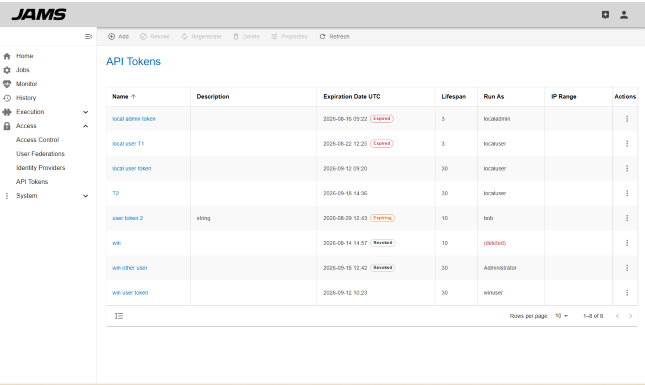
Click a column heading to sort the list by Name, Description, Expiration Date, or Run As. The Expiration Date column sorts by the underlying date rather than by the displayed text.
A long name or description is shortened with an ellipsis in the grid. The grid also shortens a description to its first 256 characters, so a token with a long description shows a stub here and its full text on the token's details page. See Managing API Tokens.
Token statuses
JAMS derives a token's status at request time rather than stored as static values. Every token is in one of four statuses:
| Status | Chip | Meaning |
|---|---|---|
| Active | none | The token is valid and can authenticate. |
| Expiring | EXPIRING (orange) | The token is still valid, but 10 or fewer days remain before it expires. |
| Expired | EXPIRED (red) | The token has passed its expiration date and can no longer authenticate. |
| Revoked | REVOKED (gray) | The token was invalidated before its expiration date and can no longer authenticate. |
Toolbar
The button panel above the grid offers, left to right: Add, Revoke, Regenerate, Delete, Properties, and Refresh.
- Add opens the drawer for creating a token.
- Revoke, Regenerate, and Delete act on the token you have selected, and each is enabled only when it applies to that token's status. See Managing API Tokens.
- Properties opens the selected token's details page, the same as clicking its name.
- Refresh reloads the list, exactly as when you first open the page.
Viewing all API Tokens
- Click Access from the main menu.
- Click API Tokens. All API Tokens are listed.
- Click a column heading to sort the list.
Adding an API Token
Creating a token issues a new credential immediately. The full token value is shown once, in a dialog, and cannot be retrieved afterward. Have somewhere ready to store it before you start.
- Click Access from the main menu.
- Click API Tokens.
- Click Add. The Add a New JAMS API Token drawer opens.
- In the Name field, enter a name for the token, up to 64 characters. The name is required and must be unique. Use something that identifies what will consume the token.
- In the Lifespan field, enter the number of days the token should live, as a whole number from 1 to 365. The lifespan is required.
- In the Run As field, select the JAMS user the token will act as:
- If you are signed in as the root user, the Run As user is shown as root and cannot be changed.
- Otherwise, click the field, type at least three characters of the username, select the user from the results, and click Select. You can select exactly one user.
- Optionally, in the Description field, enter a summary of what the token is for, up to 2048 characters.
- Click Create Token, or Cancel to close the drawer without creating anything.
The drawer closes, the new token appears in the list, and the one-time token dialog opens. See Copying a new token, below.
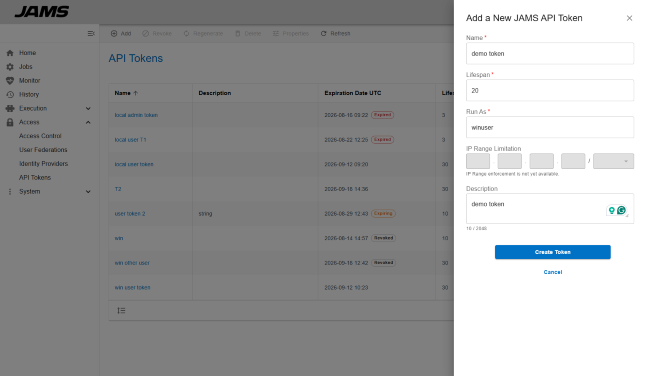
The IP Range field is visible but disabled. IP Range enforcement is not yet available, so no value can be entered.
A token's Name, Lifespan, and Run As user cannot be changed after the token is created. Only the Description can be edited later. To change any of the others, create a new token.
A token name must be unique across every token on the system, including Expired and Revoked ones. A name is available again only after the token holding it is deleted. If a name you expect to be free is rejected, an old token is probably still holding it. See Managing API Tokens for how to delete it.
Choosing a lifespan
A lifespan is a number of days, counted from the moment the token is created, and it is capped at 365 days. There is no option for a token that never expires.
The expiration date is the creation time plus 24 hours for each day of lifespan, so a 1-day token expires exactly 24 hours after it was created, not at midnight. Because the expiration date is calculated from the creation time, the time of day you create a token is the time of day it will expire.
To renew a token before it expires, regenerate it rather than creating a replacement. Regenerating restarts the lifespan and keeps the token's name, so nothing that references the token by name needs reconfiguring. See Managing API Tokens.
Choosing a Run As user
The Run As user determines everything the token can do. Bind a token to an account whose access matches what the automation actually needs, rather than to an administrator out of convenience.
The user search offers only users you can already see, which are the users from your own federation or identity provider. For an identity provider, only users who have signed in to JAMS at least once appear in the search, because JAMS creates the user record on first sign-in.
The root user is the exception. Root does not belong to any federation, so when root creates a token, the token is bound to root automatically and the form shows it explicitly.
Permissions are never cached. If the Run As user's access changes, every token bound to that user reflects the change on its very next request, in both directions.
Copying a new token
When a token is created, JAMS shows the full token value once, in a dialog, and never again.
The dialog displays the complete token in the form jams_{id}_{secret}, alongside a button that copies it to the clipboard, and this warning:
Upon closing this dialog the token will no longer be retrievable.
Copy the token and store it wherever the consuming system will read it from. Then click Close.
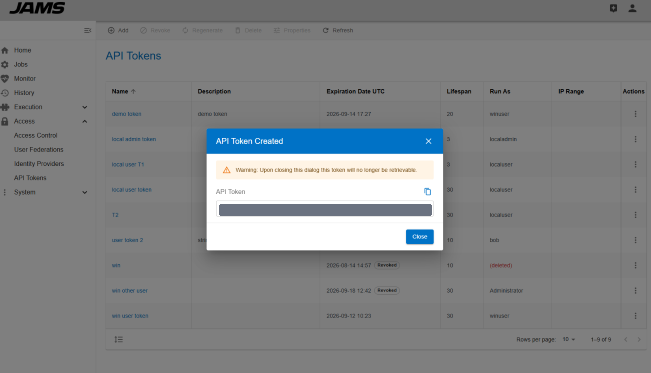
The dialog cannot be dismissed by clicking outside it or by pressing Esc, so the token is not lost to a stray click. Close is the only way out.
Once you close this dialog, there is no way to see the token value again anywhere in JAMS. If a token is lost, regenerate it to issue a new value under the same name. See Managing API Tokens.
Where to go next
- To revoke, regenerate, or delete a token, or to edit its description, see Managing API Tokens.
- To call the JAMS REST API with a token, see Using an API Token.