Managing API Tokens
After a token is issued you can revoke it, regenerate it, delete it, and edit its description. A token's Name, Lifespan, and Run As user are fixed for the life of the token.
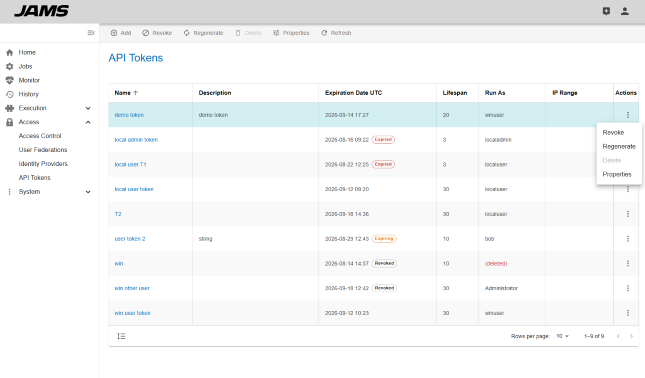
All three lifecycle actions are available from the API Tokens list, either from the toolbar above the grid or from the action menu on the token's row. See API Tokens.
Which actions apply to which status
An action is offered only when it makes sense for the token's current status:
| Status | Revoke | Regenerate | Delete |
|---|---|---|---|
| Active | Yes | Yes | No |
| Expiring | Yes | Yes | No |
| Expired | No | Yes | Yes |
| Revoked | No | Yes | Yes |
Regenerate is never disabled by status. A token that has expired or been revoked can always be brought back into service by regenerating it.
Delete requires a token that is already Expired or Revoked. To delete a token that is still valid, revoke it first, then delete it.
Revoking an API Token
Revoking invalidates a token immediately and permanently. Requests using it stop working at once. Revoke a token when it is no longer needed, or when it may have been exposed.
- Click Access from the main menu.
- Click API Tokens.
- Select the token you want to revoke.
- Do one of the following: Click Revoke in the toolbar.
- Open the action menu on the token's row and select Revoke.
- When prompted, "Are you sure you would like to revoke this token prior to its expiration date?", click Yes to proceed or No to close the dialog without making changes.
Revoking cannot be undone. To put a revoked token's name back into service, regenerate it, which issues a new token value. The value that was revoked never works again.
Regenerating an API Token
Regenerating issues a brand-new token value while keeping everything else about the token the same: the same Name, the same Run As user, and the same Lifespan. The expiration clock restarts, and the previous value is invalidated immediately.
Because the name and binding survive, anything that references the token by name keeps working once the new value is in place. This is what makes regenerate preferable to deleting a token and creating a replacement.
- Click Access from the main menu.
- Click API Tokens.
- Select the token you want to regenerate.
- Do one of the following:
- Click Regenerate in the toolbar.
- Open the action menu on the token's row and select Regenerate.
- On the Regenerate Token dialog, "Are you sure you would like to regenerate this token? The current token will be immediately invalidated and a new one will be issued.", click Yes to proceed or No to close the dialog without making changes.
- The API Token Regenerated dialog opens, showing the new token value. Copy it using the copy button, then click Close.
The token returns to Active status and its Expiration Date is recalculated as the current time plus its Lifespan.
The new token value is shown only in this dialog, exactly like a newly created token. Once you close it the value cannot be retrieved. Copy the value and update the consuming system before closing the dialog. See API Tokens.
Regenerating invalidates the old value the moment you confirm, so anything still using the old value begins failing right away. Plan for a short interruption unless you can update the consuming system immediately.
Deleting an API Token
Deleting removes the token record entirely and frees its name for reuse. A token must be Expired or Revoked before it can be deleted.
- Click Access from the main menu.
- Click API Tokens.
- Select the token you want to delete.
- Do one of the following:
- Click Delete in the toolbar.
- Open the action menu on the token's row and select Delete.
- On the Delete API Token dialog, "Are you sure you want to delete the 'Token Name' API Token?", click Delete to proceed or Cancel to close the dialog without making changes.
The token is removed from the list.
Deleting is permanent and the token cannot be recovered. If you might still need the record of a token's existence, revoke it and leave it in the list instead of deleting it.
If the delete is refused, the message explains why:
| Message | Cause |
|---|---|
| This token is not expired. Please revoke the token and try the operation again. | The token is Active or Expiring. Revoke it first. |
| Deleting 'Token Name' was unsuccessful because the item has been moved or deleted. Please refresh the view and try the operation again. | The token was already deleted, probably by someone else. Click Refresh. |
Editing a token's description
The Description is the only part of a token you can change after it is created.
- Click Access from the main menu.
- Click API Tokens.
- Click the name of the token you want to edit. The token's details page opens on the Summary tab.
- Edit the Description field.
- Click Save.
The token details page
Clicking a token's name opens its details page, as does selecting the token and clicking Properties. The Summary tab shows everything JAMS records about the token. Every field except Description is read-only.
| Field | Description |
|---|---|
| Name | The token's name. |
| Description | What the token is for. The only editable field. |
| Status | Active, Expiring, Expired, or Revoked. |
| Preview | Four characters that label this token in the interface. |
| Expiration Date | When the token expires, in UTC as YYYY-MM-DD HH:mm. |
| Lifespan | The number of days the token lives from creation or regeneration. |
| Run As | The username the token acts as. |
| Created By | The user who created the token. |
| Created Date | When the token was created, in UTC. |
| Last Changed By | The user who last changed the description, revoked the token, or regenerated it. |
| Last Changed Date | When that change was made, in UTC. |
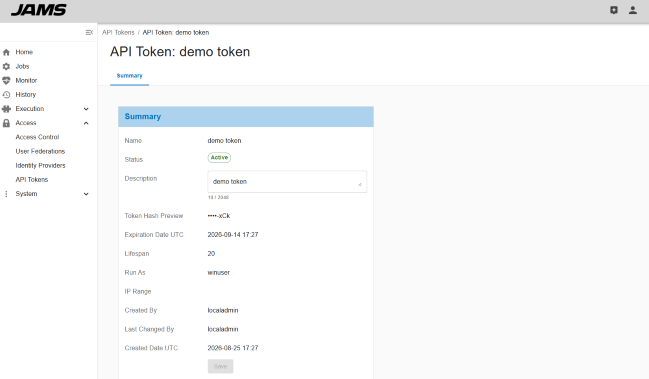
The details page is for review and for editing the description. To revoke, regenerate, or delete the token, return to the API Tokens list.
Tokens whose Run As user no longer exists
A token is tied to one JAMS user for its whole life and cannot be re-bound. If that user is removed, whether directly or because a User Federation synchronization or an Identity Provider deletion removed them, the token can never authenticate again.
JAMS handles this for you. When a user is removed, every Active or Expiring token bound to them is revoked as part of the same operation. Tokens that were already Expired or Revoked are left alone.
An automatically revoked token shows Revoked like any other revoked token, and its Last Changed By reads JAMS (Run As user deleted), which distinguishes it from a token a person revoked.
Wherever the missing user would be shown, the Run As column on the list and the Run As row on the details page display (deleted) in the error color instead of a username. Hovering it, and a warning at the top of the details page, both read:
The Run As user no longer exists, so this token can no longer authenticate. Revoke and delete it, then create a new token.
Such a token cannot be regenerated. Attempting it fails with:
The API Token cannot be regenerated because its Run As user no longer exists. Delete this API Token and create a new one.
Delete the token and create a new one bound to a user who exists.
Where to go next
- To create a token, see API Tokens.
- To call the JAMS REST API with a token, see Using an API Token.