Manually Submitting Jobs
Jobs can be submitted to the Monitor automatically through Schedule Items or manually through the Jobs, Monitor, or History views. Manual submission gives you direct control over when a Job runs, independent of its schedule.
You may want to manually submit a Job in the following situations:
- You want to test a Job before adding it to a schedule to confirm it runs as expected.
- A Job failed and you need to re-run it without waiting for its next scheduled execution.
- You need to run a Job outside of its scheduled time, such as to respond to an immediate business need.
- A Job has no schedule and is only ever run on demand.
Types of Submission Options
When manually submitting Jobs, you have two options:
- Quick Submit - Immediately sends the Job to the Monitor to run without setting any Parameters or Properties before the Job is sent to the Monitor.
- Submit with Overrides - Allows you to review and modify Job Parameters and Properties before the Job is sent to the Monitor. The properties available to configure prior to submission include Start Date, Start Time, Batch Queue, Agent, Scheduling Priority, Hold Entry, and Notes.
Where to Access These Options
These two submission options are available from two locations:
- The Submit option in the toolbar at the top of the screens.
- The three dots
 in the Actions column. If you use this option, the selected Job in that row will be submitted to run.
Manually Submitting a Job
Once you have located which Job you want to submit on your screen, you can also click the three dots in the Actions column for the Job listed in that row on the screen. This takes you directly to the two submission options, skipping the need to click Submit in the toolbar and navigate the Folder structure as described below.
-
Go to one of the following menus on the left:
- Jobs
- Monitor
- History
-
Click Submit at the top of the screen. The Submit Job screen is displayed and lists the available Folders.
-
Search for the Job Name in the Filter field, or expand the Folder that has the Job you want to run.
-
Click the Job to select it.
-
Do one of the following:
- To submit the Job without changing Parameters, click QUICK SUBMIT. The Job is submitted to run in the Monitor.
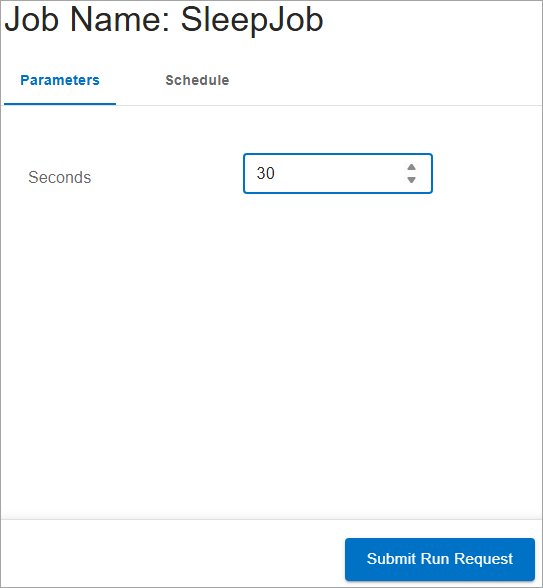
- To modify Parameters before submitting the Job, click SUBMIT WITH OVERRIDES. You can make any modifications on the Parameters and Schedule tabs and then click Submit Run Request. The Job is submitted to run in the Monitor.
-
Click Monitor from the main menu. The Job appears in the Monitor, where you can track its execution status. See Monitor for more information.