Query Management
The Query Management option lets you customize the Job Entries that are displayed on the Monitor or History screens, so you can easily view the data that you want. You can create Queries that users can access to customize their views.
For example, you could create Queries for:
- Failed Jobs on certain Agents
- Jobs that are on hold for the next 5 hours
- Jobs that failed on an Agent within the last 3 hours
After you create a Query, you can select it from the Queries drop-down menu in the Monitor or History screens to filter the information.
Queries and Filters Hierarchy
A Query can contain one or more Filters to modify how data is displayed. When you apply more than one Filter, the results must match all of the Filters you selected. If you have multiple values within the same Filter, the results can match any of those values.
The example below shows the hierarchy for a Query that looks for failed Jobs on either of two Agents: SampleAgent and SampleAgent2.
-
Query: Failed Jobs by Agent Name
-
Filter: Status
- Filter Value: Fatal
-
Filter: Executing Agents
- Filter Values: SampleAgent or SampleAgent2
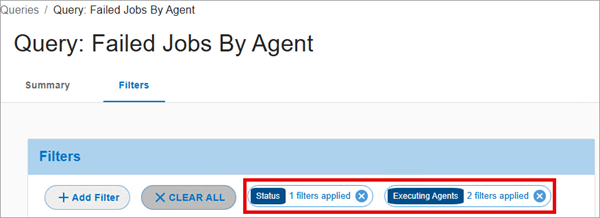
- Filter Values: SampleAgent or SampleAgent2
-
Who can view a Query
Any user can view Queries in the drop-down menu that have been created. However, when a user selects/applies a Query from the drop-down menu in the Monitor or History screens, the Query is applied for only that logged in user. If the user logs out or switches screens in the JAMS Web Client and returns to the Monitor or History screens, the selected Query is still applied.
If another user logs in to the JAMS Web Client from the same browser, the previous user's Query is not applied.
Types of Filters
Entering Multiple Filter Values
To enter multiple values for a Filter, such as 3 Entry IDs, add a value, click + ADD FILTER, and then repeat. Only one value can be entered at a time.
Job/Entry Filters
| Filter Name | Description | Example |
|---|---|---|
| Status | This option is the execution state of the Job. Values: Status - Unknown, Successful, Informational, Warning, Error, Execution, Fatal, Executing, Held, Pending, DependencyWait, Timed, NeedInstruction, or Help. You can also filter by a color for a status in the Monitor. | Display Jobs with a final status of Fatal.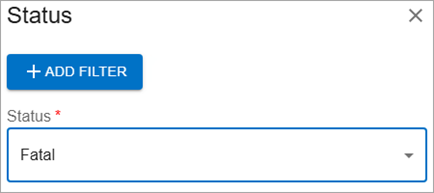 |
| JAMS Entry Number | This option is the unique identifier for the Job entry in the Monitor and History screens. Values: JAMS Entry Number - Enter an Entry ID that you want to view. | Display Jobs with an Entry ID of 159.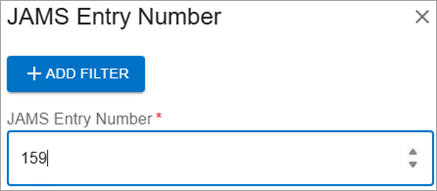 |
| Name | This option is the name of the Job. Values: Name - Enter the name of the Job that you want to view. | Display Jobs named SleepJob.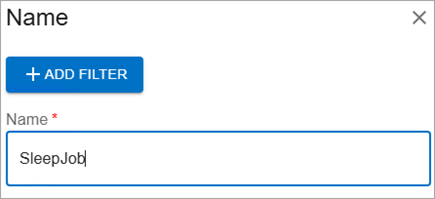 |
Date Filters
| Filter Name | Description | Example |
|---|---|---|
| Date Range | This option includes the start date, end date, start time, end time, and category/state of the Job. Values:
| Display Jobs that started on April 15, 2026 between 12:00 am and 8:00 am.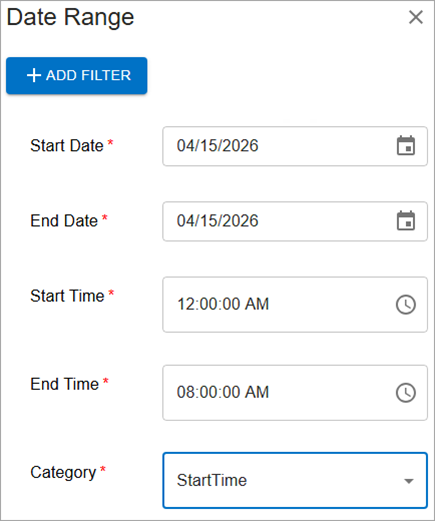 |
| Future Window | This option lets you display Jobs from the current time to a set number of days, hours, minutes, or seconds in the future. This is rolling window of time. Values:
| Display Jobs that are on hold for the next 5 hours based on the current time. |
| Past Window | This option lets you display Jobs from the current time to a set number of days, hours, minutes, or seconds in the past. This is rolling window of time. This option is available for only History Queries. Values:
| Display Jobs that have completed in the last 5 hours based on the current time.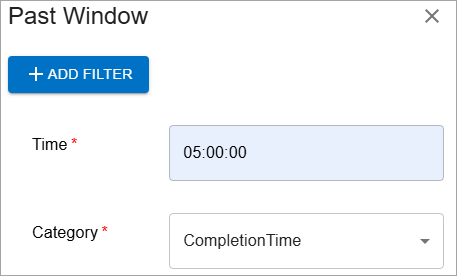 |
Agent Filter
| Filter Name | Description | Example |
|---|---|---|
| Executing Agents | This option lets you filter by the type and the name of the Agent that the Job is assigned to. Values:
| Filter by Outgoing Agents named SampleAgent.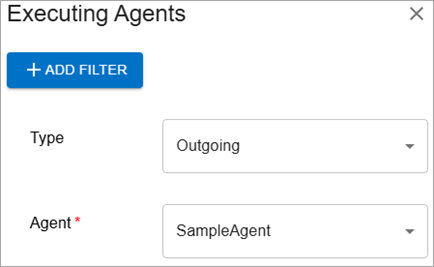 |
Access Permissions
You must have Execute and Inquire permissions in the Configuration section in the Access Control to create, edit, and delete Queries. Your user account must have Inquire permission use Queries to filter the Monitor or History screens.